

Courts
Add court asks for a name, the sports it hosts (the same sand court can serve beach tennis, volleyball and footvolley), the surface (sand, clay, hard, grass, synthetic, wood or other), the features (covered, lights, indoor), the player capacity (optional) and a photo. Opening hours are per weekday: tap a day to open or close it, adjust the window, or use Apply to every day. Each day takes up to six windows of at least one hour. Closures take the court off the grid for a period (maintenance, private event, holiday), with a reason. Each organization registers up to 30 courts. They show on the organization’s public page, with the weekly hours, and the venue starts showing in the app’s Search → Courts, filterable by the sports of its active courts.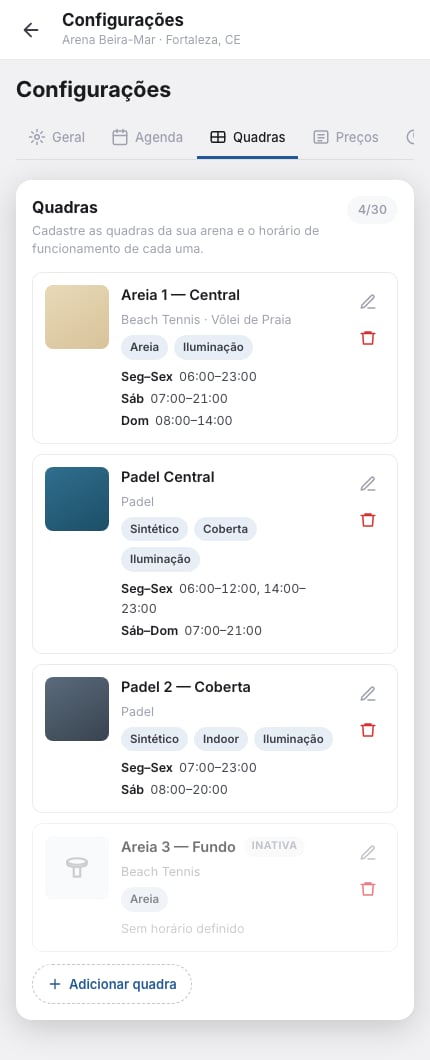
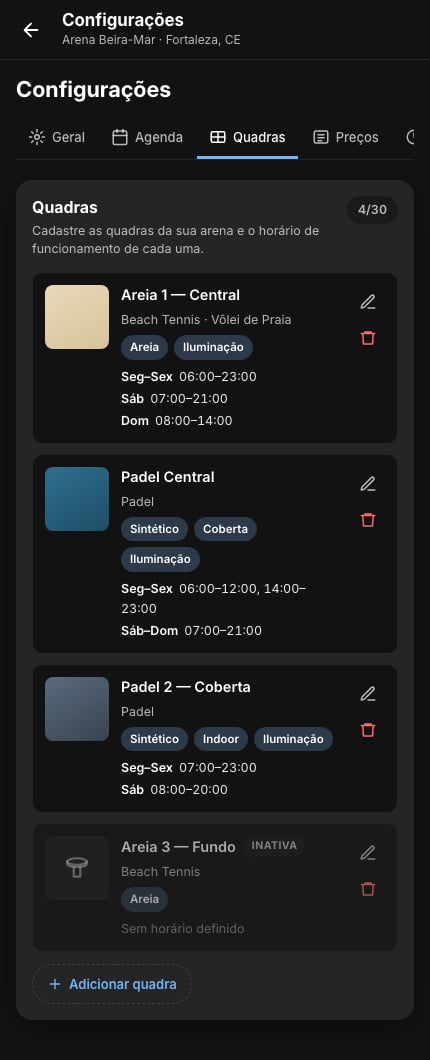
The Courts tab: each card carries sports, features and the hours grouped by identical days; the inactive one is dimmed with a label. (Screens are shown in Portuguese.)
Pricing
A price rule covers court × weekdays × time range × duration. With no duration, the price is per hour and applies proportionally to any duration; with one, the rule covers that duration only. Each rule can carry a member price, which the organization’s members see instead of the standard one — to give someone the member price, add them under Settings → General → Add member (see members). Any member counts, in any role. A member price of 0 lets members play for free: they book without paying while everyone else pays the full price, and the venue gets the Free for members badge in search. When more than one rule covers the same time, the highest priority wins; on a tie, the lower price. The How much does it cost? panel simulates a combination of court, day, start and duration, and the Open hours with no price list shows what is left uncovered.Booking
The Booking tab is where booking is turned on and off. To turn it on, the app requires these things, and lists what is missing:- the organization has a manager;
- the time zone is set — the app detects it from the address under General, or you type it in;
- the cancellation policy is filled in;
- only if the venue charges online: the organization owner has connected Mercado Pago (that is the account the money lands in). A free venue, or one that only takes payment on site, does not need Mercado Pago.
- Free — every booking is free, with no price table. There is no payment, deposit or split; the cancellation policy still applies, without money (cancelling past the deadline counts as late on the player’s record). If the organization already has price rules, the card says how many are ignored while pricing is Free.
- Paid — the Pricing tab’s table applies (with the member price, which can be 0), and you choose how players pay.
A venue that has not saved the Booking tab yet and already has price rules
opens the card on Paid. With no pricing saved, Matchely treats the venue
as free — check the choice before turning booking on.
- Online only — the player pays in the app, through Mercado Pago, and the booking is confirmed when the payment lands. You can charge a deposit (5 to 50 % of the price) instead of the full amount: the rest is paid at the venue, and the player’s screen shows how much.
- At the venue only — nobody pays in the app; it is settled at the desk.
- Online or at the venue — the player chooses when booking. Each way follows its own rule: deposit online, approval (or not) at the venue.
- Only organization members can book — when on, non-members see the schedule but can’t book, and get a link to request to join. Any member counts, in any role. The venue gets the Members only badge in search and on the public page.
- Open bookings per player — 1 to 10 (3 by default).
- Open match (Accepts open matches / Does not accept) — with it on, a player who creates a link invite can hold a free or pay-at-the-venue court until the match fills up, paying nothing up front. With 2 or more players missing, the court is held until 12 hours before the start; with 1 missing, until 4 hours before; when the match fills up, the booking is confirmed (or reaches you as a request, if you approve each one). If players are missing in time, the court goes back to the grid on its own.
The Open bookings per player limit counts, among bookings starting in the
future, requests awaiting a reply, free bookings and pay-at-the-venue
bookings with nothing received yet — including a court a player booked
together with a match invite. It applies to new free or pay-at-the-venue
bookings: the next one is refused until one of them is answered, played,
paid or cancelled. A booking paid online is never blocked, and what the
venue books at the desk (fixed slots included) does not count. A request
that reaches the start time without a reply falls on its own, and the player
is told.
- Grid step (30 or 60 minutes) and sellable durations, which must be multiples of the step.
- Booking window: how far ahead a player can book (1 to 180 days).
- Minimum notice: how close to the start a player can still book.
- Cancellation policy, in up to three bands: how many hours before the start a player can cancel with a full refund; optionally a second band (Refund part after the deadline) with the percentage refunded and up to how many hours before it applies; after that, no refund. There is also a note the player reads before booking. The policy that applies to each booking is the one published when the player booked — changing it later does not reach whoever already booked. Refunds only ever cover what was paid online.
- Split between players: whether a player can split the cost, and the share deadline (hours before the start). Splitting only exists when the full price is paid online (no deposit), and never with Free pricing. Whoever books is the guarantor: whatever is missing at the deadline becomes a charge to them, and if they do not settle it by 2 hours before the start the booking falls, with a full refund to everyone.
- Require tax ID (CPF or CNPJ) from whoever pays (Yes / No) — so you can issue an invoice or receipt for the booking. With it on, the player provides the document before the booking is created; they provide it once and it stays in their profile. It only works with bookings in reais: in any other currency Matchely refuses the setting.
Online payment works only in Brazilian reais (BRL), through Mercado Pago. The
gateway fee is on the organization and is not returned in any refund.
Matchely charges nothing on bookings.
Agenda
The Agenda shows the week (or the day) of one court or all of them, with the legend: player booking, walk-in booking, block and held slot (payment in progress). When requests are waiting for your reply, the title shows Requests (n) — counting every future request, not just the week on screen; tapping it jumps to the day of the nearest one. Tapping a free slot offers two actions:- Block — takes the court off the grid for every sport, with a reason (maintenance, lesson, event). It can repeat every week until a date, skipping taken slots or not.
- Manual booking — for whoever called or walked in. A Matchely player (by name or @username) or a free-text name, sport, start, duration and the agreed amount, which comes from your price rules and can be edited. Payment is At the venue, or — if the venue charges online and the customer is a player with an account — Online, and they pay in the app. Repeat every week until a date (at most one year) creates a recurring slot: one booking per week, skipping the weeks where the slot is already taken. The player gets a single notice, with the skipped weeks, and the Recurring slots list in the Agenda lets you cancel the whole series.
- On a request, Approve confirms the booking and Decline (with an optional reason the player sees) puts the slot back on the grid. The player is told either way.
- While there is still money to receive, the Received at the venue block records how much the player paid at the desk. The amount replaces the previous one (to fix it, save the right one) and goes up to what is still owed — including an online booking the player ended up paying at the venue.
- From the start of the booking until 48 hours after it ends, Mark as no-show records that the player did not come (they are told, and it goes on their record); Remove no-show undoes a mistake. Cancelling asks for a reason (the player sees it) and brings the Refund the amount paid switch, on by default: a cancellation by the venue refunds in full, even past the policy deadline. Turned off, the app refunds nothing and settling it is on you. On a weekly block, you can remove just that occurrence or that one and the future ones.
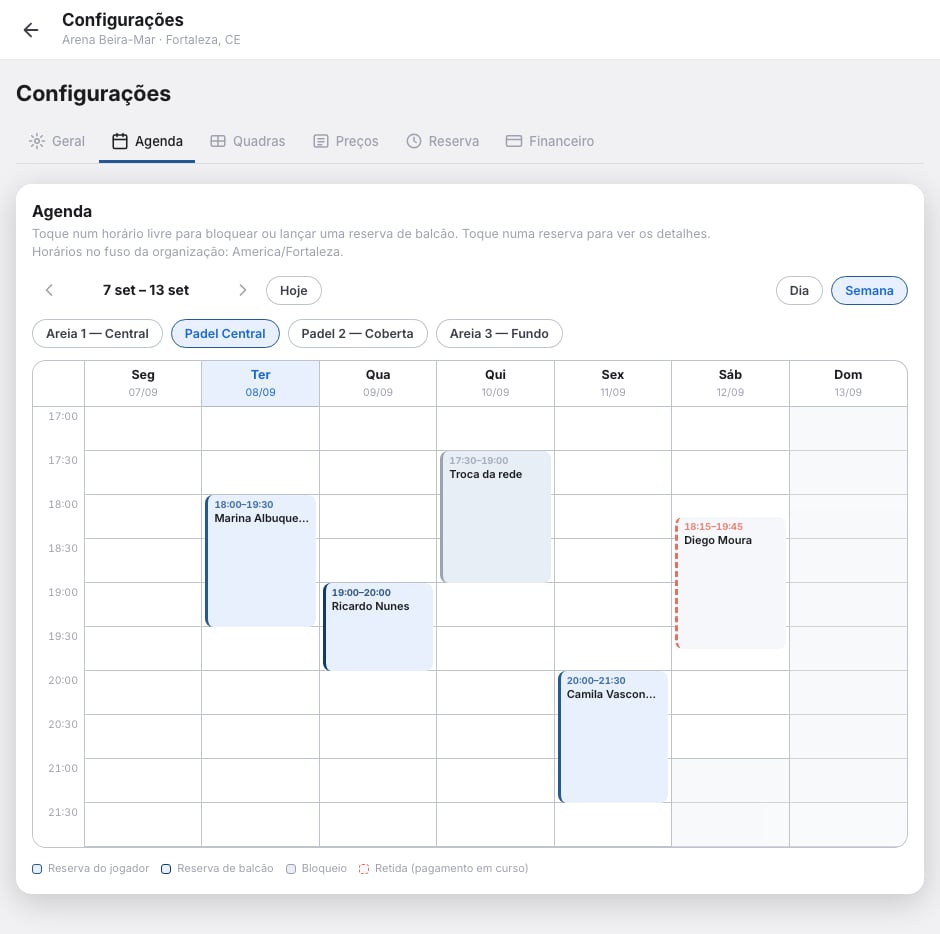
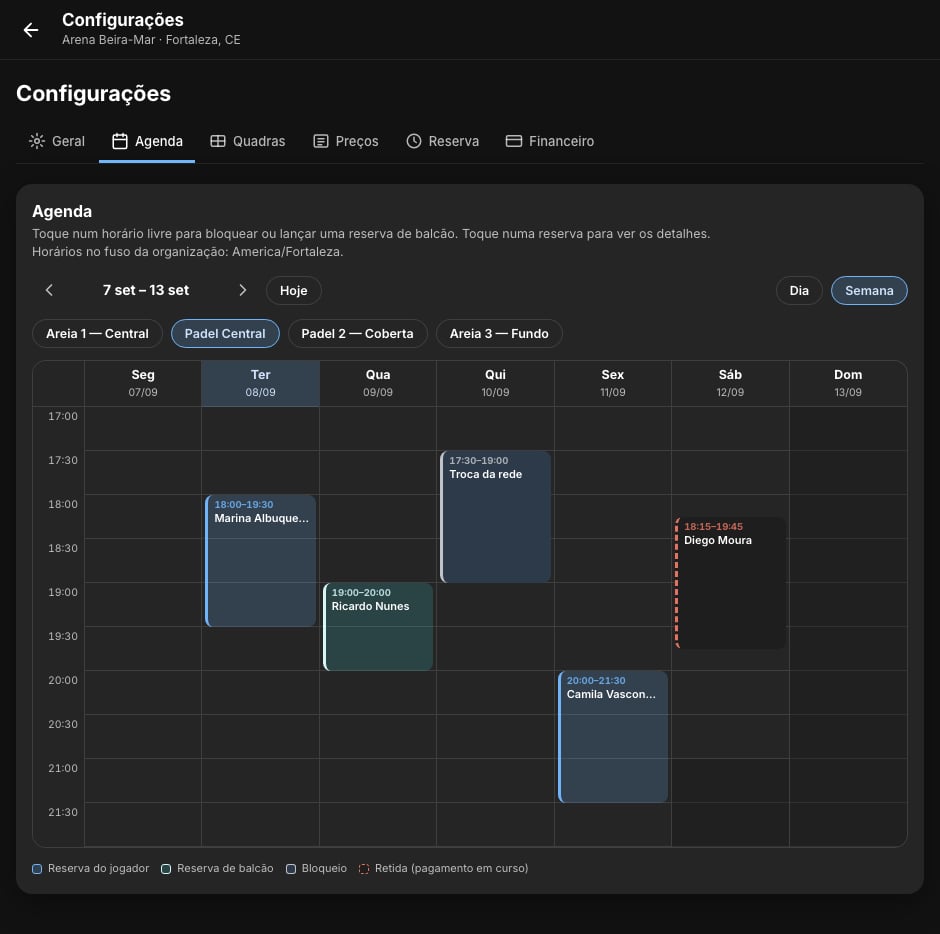
One court's week: a player booking, a walk-in booking, a block and a slot held while someone pays.
Finance
The Finance tab adds up what the bookings moved in the period (this month, last month or custom), for one court or all: Gross, gateway Fee, Estimated net, Refunded and Shares pending from splits. A booking’s fee may arrive after the payment, and the net goes down when it does — the panel says how many are still missing. Download spreadsheet exports the period with date and time, court, owner, participants, source, status, gross, fee, net, refunded and — when the venue requires the document — the Tax ID (CPF/CNPJ) and Legal name of whoever paid. The official statement is the Mercado Pago one, linked from the tab itself.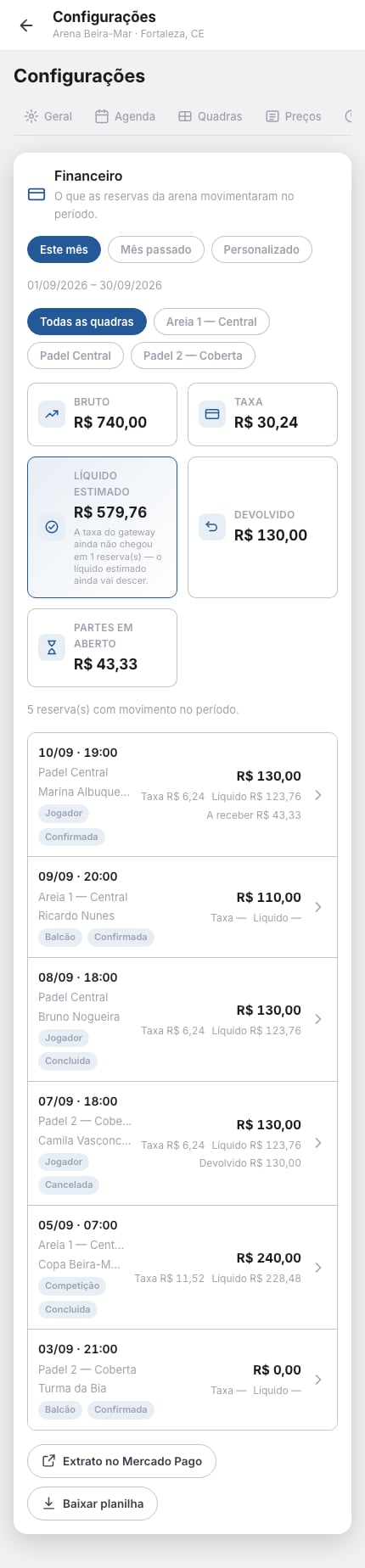
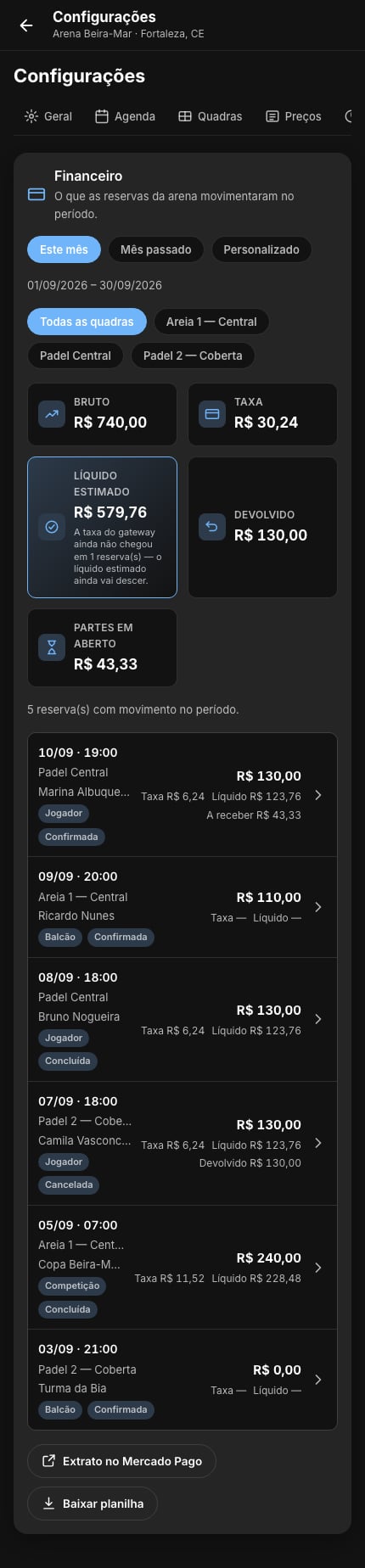
The month's Finance: the five totals, with the estimated net highlighted and the notice about the fee that has not arrived yet, and the list of bookings with each one's money.
Book a court
What the player sees: grid, payment, split and cancellation.
Organizations
Creating the organization, its page and the team.