

Booking requires a Matchely account. The venue’s public page shows the
courts and opening hours to any visitor; the Book button lives in the
app, for signed-in players, and only at venues that turned booking on.
Where to book
Open the venue’s page on Matchely (its link, search, or from a competition it published). Under Courts, each court has a Book button. If the venue has not turned online booking on yet, the list of courts and hours stays there for reference only. To find a venue, open Search and tap Courts: you get the venues with courts in the chosen area, with their sports (and the distance, when searching by radius) and badges that say how booking works — Book online (through Matchely) or Book with the venue (the venue has not opened booking in the app yet; contact them directly) — and, when online booking is on, Free, Free for members or Members only. The filters pick the sport, Online booking only and Free now; at venues with online booking the card says how many courts are free now or the next free time today. “Free now” means an empty court at this moment — the venue may require some notice, and then the bookable time starts later. The venue’s page shows the same badges.The time grid
1
Day
A strip of dates starting today. How far ahead you can book is up to the
venue.
2
Court, sport and duration
The court selector only shows when the venue has more than one court; the
sport chips, only on a court that hosts more than one sport. The durations
on offer (60, 90, 120 minutes…) are the venue’s choice too.
3
Time
Each cell is a possible start, with the price for the chosen duration —
or Free, when the venue does not charge. A dimmed cell has no price or
is already taken. If you are a member of the organization, the grid
already shows member prices; when that price is zero, the cell says Free
for members.
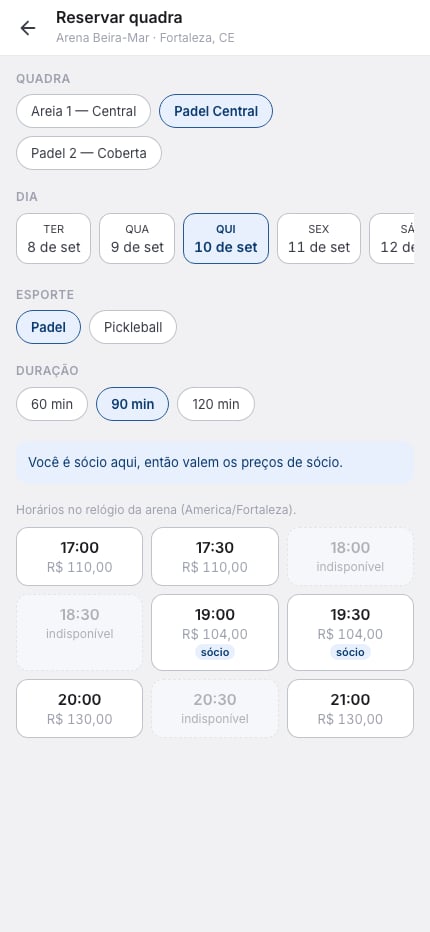
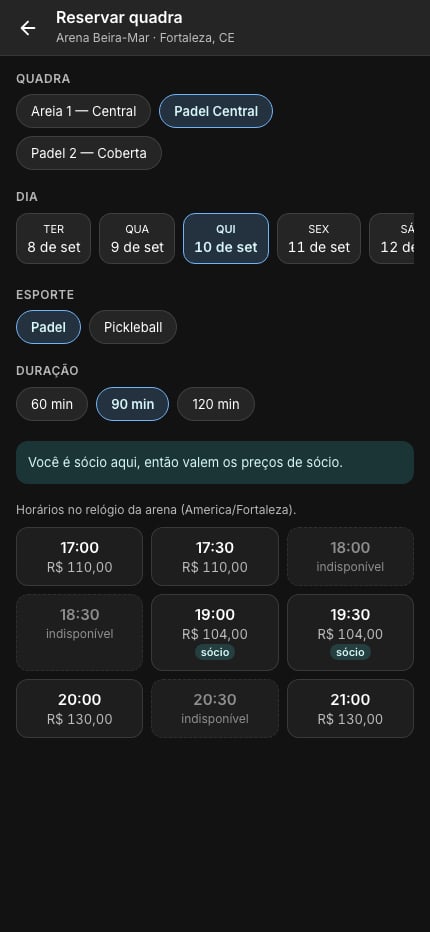
The grid: court, day, sport and duration on top; each cell is a start time with its price. Dimmed cells are taken or unpriced. (Screens are shown in Portuguese.)
Confirm and pay
Tapping a time opens the confirmation: court, day, start, duration and price, a message to the venue (optional) and the cancellation policy. Read it before booking: that policy is the one that applies to your booking, even if the venue changes theirs later. When the slot is free — the venue does not charge, or you are a member and your member price is zero — there is nothing to pay: the button is Book and the booking is Confirmed right away; if the venue approves each request, the button is Request booking and the booking stays Awaiting the venue until it replies. The cancellation policy still applies, with no money involved: cancelling past the deadline counts as a late cancellation on your record. When there is a price, how you pay depends on the venue — some accept only one way, others let you choose:- Online — Pay opens Mercado Pago (Pix or card). While you pay, the time is held for 10 minutes so nobody else can take it. Once paid, the booking becomes Confirmed. If the payment does not finish within the hold, it expires and the time goes back on the grid — nothing is charged. Some venues charge only a deposit online: the confirmation shows how much you pay now and how much at the venue.
- At the venue — nothing is paid in the app. If the venue approves each request, the button is Request booking: the slot is kept for you, with the status Awaiting the venue, until it approves or declines (you are told either way). If it does not reply by the start time, the request falls. If the venue confirms instantly, the booking is Confirmed right away.
The requirement only exists at a venue charging in reais (BRL), and it
applies to whoever pays — including someone paying their own share of a split
bill. The venue sees the document masked in the booking detail and can
reveal the full value: they are the one issuing the invoice.
Each venue sets how many open bookings you can hold there at once (1 to
10; usually 3): requests awaiting a reply, free bookings and pay-at-the-venue
bookings with nothing paid yet, all starting in the future. The limit applies
to new free or pay-at-the-venue bookings: to make another one, wait for a
reply, play, or cancel one of them. A booking paid online is never blocked,
and slots the venue booked for you (such as a fixed weekly slot) do not
count.
Book the court together with an invite
When you create a match invite and the chosen place is a venue with online booking, the place card offers Book a court too. You pick the court and the start on the venue’s grid — only the times that fit the invite’s time — and, when the venue takes both ways, how to pay. The court is booked in the same tap that publishes the invite: if someone took the slot in the meantime, nothing is published and the grid reopens so you can pick another. A booking paid online opens the payment right after publishing. For a Now match, the venue books the first free time from now on (respecting the notice it requires), within the next 2 hours. The invite shows the line Court booked · court · time with its status (confirmed, awaiting the venue, payment pending or court cancelled). If the booking falls through, the match stays on — just without the court — and the players who joined are told. If you delete the invite or cancel the match, the booking is cancelled with it, under the venue’s policy; if the invite expires with nobody joining, a booking with nothing paid is released on its own, and one with a payment stays yours (you get a notice to cancel it if you are not playing). While the court is booked, the invite’s time and place cannot be changed — cancel the booking first. Multi-day invites do not book courts.Open match: the court is held until the match fills up
At some venues, on a link invite, you do not have to confirm the court straight away: when picking the court, turn on Only confirm the court once the match fills up. The court is held for your match while the spots fill, with nothing paid:- with 2 or more players missing, the venue holds the court until 12 hours before the start;
- with 1 missing, until 4 hours before;
- when the last spot is filled, the court is confirmed (or, if the venue approves each request, it goes to the venue to approve).
Waitlist
A taken slot is not a dead end. Tap it on the grid and choose Notify me if it frees up: you join the queue for that slot (the sheet shows how many people are already in it, or your position). If the booking holding the slot falls through, the first person in the queue gets the turn: a notification and an email, and 15 minutes during which the slot is held for them only. Booked it, you leave the queue. Did not book in time, you leave the queue and the turn passes to the next person.- Each slot takes up to 10 people in the queue, and you can be in up to 5 queues at once.
- Your queues show in My matches, under Waitlist, with your position and Leave; on your turn, the card moves to Needs you, with Your turn until a given time and the countdown, and offers Book now.
- At a venue that approves each request, booking on your turn becomes a request: the venue still confirms it.
- When the slot starts, the queue ends.
Review the venue
After you play, Matchely asks How was it? — by notification and on the booking screen. Give 1 to 5 stars and, if you like, a short comment (up to 300 characters). Your rating shows on the venue’s page, with your name, and goes into the average that search shows. You can review up to 14 days after the match, once per booking; deleting the review takes the rating off the page, and you can review again while the window is open. Only whoever made the booking in the app reviews, and only a completed booking: desk bookings, competition bookings and bookings with a no-show recorded cannot be reviewed.Add a public court
Played in a square, a park or a council court that is not on Matchely? Add the place as a public court. There are two ways:- when creating a match invite, if the place picked on the map is a sports venue, a square, a playground or a school and is not on Matchely yet: Add as a public court;
- in Search → Courts, under Can’t find it? Add a public court.
Split the cost
If the venue allows it, turn on Split the cost at confirmation and add 1 to 3 people. Splitting only exists when the whole court is paid online (no deposit and no payment at the venue) — from your network or just by name. The cost is split into equal shares (some courts cap the number of people by capacity). You pay your share now, and that is what confirms the booking. Each guest pays their share through a link of their own. Guests with a Matchely account get a notification as soon as the booking is confirmed; for the others, the booking screen has Copy link next to each name, with a ready-made message. Whoever opens the link sees only what concerns them — court, time and the share amount — and taps Pay my share.The booking screen
Every booking has a screen of its own, with the current status (Awaiting payment, Awaiting the venue, Confirmed, Cancelled, Hold expired, Completed, No-show), the place with Open in Maps, who is playing and who has paid, the court total, your message to the venue and the cancellation policy you read. From there you also get Add to calendar, Share and, on a booking still on hold, Finish payment with the hold countdown.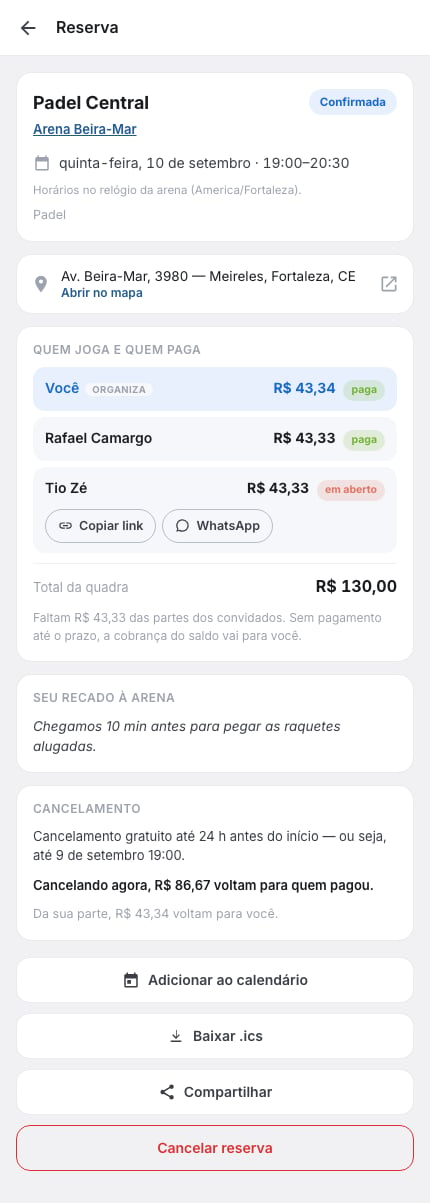
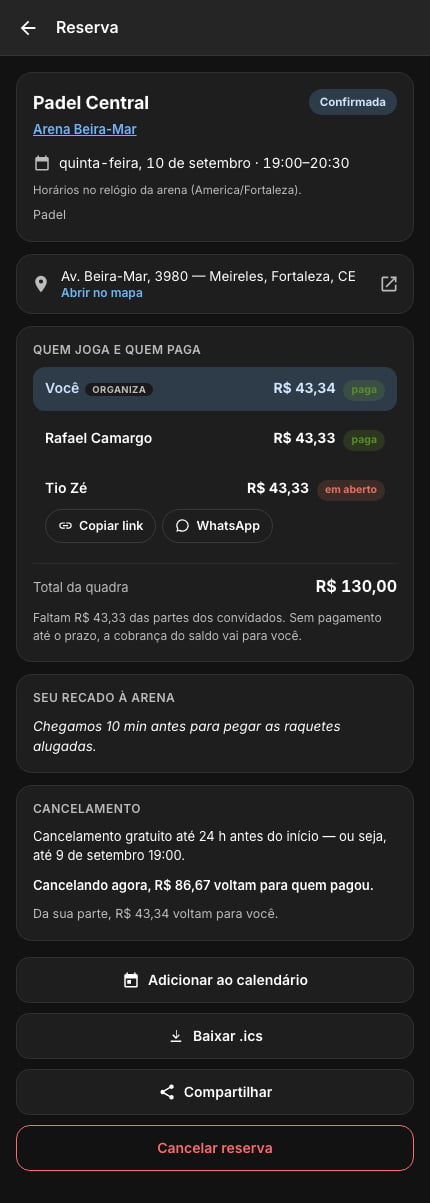
A confirmed booking as the organizer of a split sees it: one share still open, with the guest's link, and the cancellation policy with the amount that would come back now.
Cancelling
Only whoever booked can cancel. The venue’s policy has up to three bands: up to a certain time before the start, a full refund; some venues still refund a part (a percentage) in a second band, closer to the match; after that, nothing. On a booking paid online, the screen shows the current band and, before you confirm, how much comes back to each person who paid (your share and the guests’). The court goes back on the grid right away, and the refund takes a few days to show up, at the gateway’s pace. If nothing was paid online — a request not yet answered, or a booking to pay at the venue — there is nothing to refund: cancelling just frees the slot.The venue sees your booking record: how many bookings you kept, the
no-shows it recorded (when you did not turn up) and late
cancellations — cancelling a confirmed booking after the full-refund
deadline. Withdrawing a request the venue has not answered yet does not count
as late.
Where the booking lives
- My matches → Upcoming matches: confirmed bookings, by date, next to your other matches.
- My matches → Needs you: a booking of yours still awaiting your payment, or a share of yours still open on someone else’s booking.
- Menu → My account → My payments: every court payment, with its status (paid, refunded) and View booking.
Matches overview
How My matches is organised.
I run a venue
Register courts, prices and turn booking on.